CleanShot X Review: The Screenshot Tool Mac Professionals Swear By
CleanShot X is the screenshot tool Mac professionals reach for when Apple's built-in tools stop being enough — here's what 8 months of daily use reveals.
By Clara Osei · Published:
What Exactly Is CleanShot X Trying to Be?
The honest answer is: everything Apple's built-in screenshot tool refuses to be. After using CleanShot X daily for the better part of eight months — across a 14-inch MacBook Pro and a Studio Display setup — I can tell you it's the most complete capture tool on the Mac. That's not a compliment I hand out lightly, and it comes with real caveats you need to hear before you spend a dollar.
CleanShot X from MakAntoni is a $29 one-time purchase (or bundled in Setapp if you're already a subscriber). It replaces the native screenshot system entirely, sits in your menu bar, and handles everything from a quick area grab to a multi-window scrolling capture to a GIF recording of a UI flow. The pitch sounds like bloat. In practice, it's deceptively well-integrated.
Does the Annotation Layer Actually Change How You Work?
Yes — and this was the first thing that genuinely surprised me. macOS lets you mark up a screenshot in Preview or the Quick Look overlay, but the workflow is friction. You take the shot, wait for the thumbnail, tap it, tap the markup button, choose your tool. Four steps before you've drawn a single arrow.
CleanShot X's annotation panel appears immediately after capture. Arrows, rectangles, text labels, numbered callouts, a highlight tool, blur, and a surprisingly powerful pixelation brush for redacting sensitive data. When I'm shipping a Notion comment on a design mockup or documenting a bug for an engineer, I'm in and out of annotation in under 20 seconds. The blur tool alone — which lets me drag to obscure an email address or API key in a screenshot — has saved me from at least three embarrassing Slack pastes.
The text tool renders in clean system fonts with background fill options. It doesn't look like a red Sharpie on graph paper, which is more than I can say for some competing tools I've tried.
What Makes the Capture Modes Worth Your Attention?
The three capture modes that have earned real estate in my muscle memory are:
- Scrolling Capture — CleanShot X scrolls a page automatically and stitches the frames into one long screenshot. It handles most modern websites cleanly. Not perfect with infinite scroll or heavy JavaScript carousels, but for documentation pages, pricing tables, or long email threads, it works remarkably well.
- All-in-One — a mode that lets you grab any area, window, full screen, or even a custom-defined region you've saved. I have a saved region that clips exactly my browser viewport at 1440×900 for publishing thumbnails. It fires every time in one keystroke.
- Self-Timer Capture — sounds trivial, sounds like it wasn't worth engineering. But when you need to screenshot a hover state, a tooltip, a dropdown menu that disappears the instant you move your cursor to a capture button — the three-second timer is irreplaceable. Apple's equivalent exists but lacks the annotation flow that comes after.
Screen recording and GIF capture are included. The GIF mode particularly stands out: you set your region, record, and CleanShot X renders the GIF with configurable quality and frame rate. I've embedded these into JIRA tickets and Notion pages for months. The output is notably cleaner than ScreenToGif's Mac alternatives, and the file sizes stay sane without manual optimization.
How Does CleanShot X Stack Up Against Shottr?
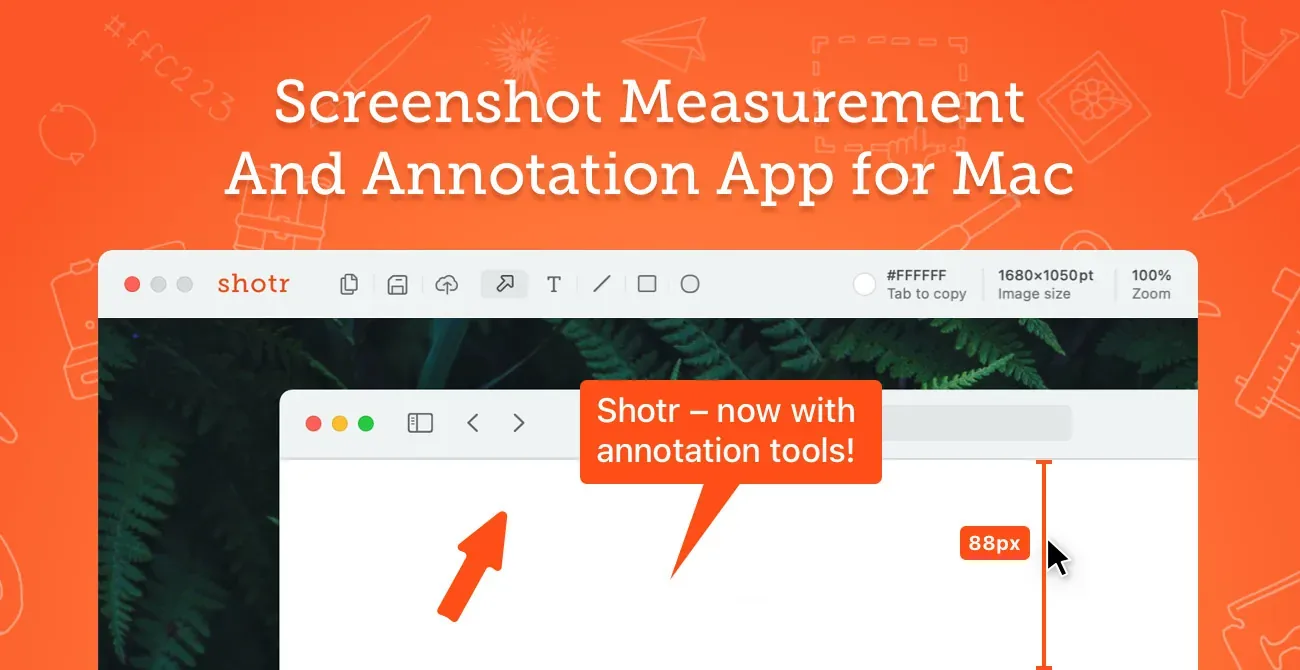
This is the comparison that matters most in 2024, so I'll be direct: Shottr is free, it is fast, and for 80% of users it is enough. I mean that seriously. If you mostly take screenshots to paste into Slack or drop into a folder, Shottr handles it brilliantly with a lighter memory footprint and zero cost.
Where CleanShot X earns its price over Shottr is in the depth of its feature set, not in the basics. Shottr has OCR. CleanShot X has OCR too, and it's slightly more accurate in my side-by-side tests on dense UI text. But Shottr lacks scrolling capture, lacks the GIF recorder, lacks the pinning-to-desktop feature, and its annotation toolbar is more spartan. If you annotate frequently, share work externally, or need scrolling captures more than once a month — CleanShot X wins the argument.
Against Apple's built-in tools, there's no competition worth having. The native Cmd+Shift+5 flow is serviceable for a quick grab, but it has no annotation workflow, no history, no scrolling capture, no GIF, and no quick-share cloud option. It's a baseline, not a professional tool.
Snagit is worth mentioning for completeness. It's older, heavier, Windows-centric at its core, and at $62.99 it costs twice as much. Snagit's video tools are more powerful, but if you're on a Mac and you care about native feel and performance, CleanShot X is the right call by a wide margin.
What's the Capture History Feature Really Like in Practice?
CleanShot X keeps a searchable, thumbnail-browsable history of every screenshot you've taken. I thought this would feel like clutter. It turned out to be one of my most-used features.
When a designer sends me a Figma file and three days later someone asks "wait, what did that button say before the redesign?" — I can pull the answer from my capture history in seconds.
The history panel is accessible from the menu bar, supports quick copy-to-clipboard or drag-out, and lets you re-annotate a past screenshot without recapturing. The storage footprint is configurable. I cap mine at 500 captures and periodically clear it without thinking about it. It's a genuinely useful addition that similar tools don't ship with.
Who Is CleanShot X NOT Built For?
I want to be honest here because MacBuddy isn't in the business of selling you tools you don't need.
- Casual Mac users. If your screenshots end up in iMessage or a personal Notion doc once a week, the built-in tools or Shottr (free) are completely sufficient. CleanShot X's depth will feel like overhead.
- Video-first screen recorders. If you're producing tutorial videos, recording walkthroughs for YouTube, or capturing with voiceover — look at Screen Studio or Loom. CleanShot X records screen video, but it's not optimized for the presenter-mode, background-blur, zoom-on-cursor experience that Screen Studio delivers.
- Budget-constrained users on Setapp already covered. Wait — actually if you're on Setapp, CleanShot X is already in your subscription and there's no reason not to install it right now.
- Windows switchers who want parity tools. SnagIt or ShareX are the references on Windows. CleanShot X is a Mac-native product, and it shows in the interaction design. If you're expecting to replicate ShareX's scripting hooks, you'll find it more opinionated and less configurable at the system level.
Is the $29 Price Justified?
Yes, without much deliberation — with one condition. If you work in a role where screenshots are a communication tool, not just an occasional utility, CleanShot X pays for itself in saved friction inside a week. I've used it daily since February without a single crash, without a memory leak complaint, and without an update that broke anything.
The Setapp path is worth calling out: if you're already paying the $9.99/month Setapp subscription for other apps, CleanShot X is included, and the math is obvious. If you're not on Setapp and screenshots are your single motivation to join, the $29 direct purchase is the cleaner call.
The one legitimately open question is cloud sync. CleanShot Cloud — the optional sharing tier — is an extra subscription. For most users, sharing via direct file or copy-to-clipboard covers every real case. I've never felt the pull to pay for CleanShot Cloud specifically. The core product, standalone, is what earns the recommendation.
What's the Honest Verdict After Eight Months?
CleanShot X is the screenshot tool I'd recommend to any Mac professional who communicates through their screen — designers, engineers, writers, product managers, anyone in a remote-first team. It's thoughtfully built, Mac-native in feel, and the feature set is broad enough to replace three separate apps you'd otherwise be juggling.
It's not for everyone. Shottr remains the best free option, and for casual use it's hard to argue against free. Screen Studio wins if video is your primary output. But if your workflow lives in the middle — lots of annotations, occasional scrolling captures, share-ready output, and a history you can trust — CleanShot X is the only tool on the Mac that does all of it well.
Eight months in, it's the first thing I reinstall on a new Mac. That's the real review.
Clara Osei
Mac App Editor